
Fleet
The home screen: the selected host at a glance.
The Fleet tab shows one host at a time, the one selected in the host switcher at the top. The list updates live, so there is no pull-to-refresh on this screen.
The host switcher
The line under the title reads “N hosts online · M containers”. Tap it for a menu of your hosts, each with a status icon (a tick for the current one, a dot for connected, a dotted circle while connecting or reconnecting, an exclamation mark if it failed), and Add host….
The summary card
The card at the top counts what needs attention on the selected host. Its headline reads No containers, All N containers healthy, 1 needs attention or N need attention, and its colour and icon follow the worst container. The line under it counts running and stopped containers, and adds paused and unhealthy ones when there are any, followed by how recently it updated.
Connection banners
- “Connecting to <host>…” while it dials.
- “Reconnecting (attempt N)” with the reason, if the connection drops.
- If it fails, the reason with a Retry button. The reasons include authentication failed, host key not trusted, host key changed, the host did not answer, and “docker is not available on the host”. For a tailnet host you may see “sign in under Settings”.
Names that will not resolve
If the phone cannot resolve a tailnet name without the Tailscale app and the built-in node is running, the banner offers Use built-in to reach the host through the node.
Images, Volumes and Networks
Three tiles show a count each. The caption turns amber to say how many images are dangling or volumes are unused. Tap one to browse the list, with Nothing here. if it is empty. Tap an item for its detail: an image shows its ID, size, created date and tags, a volume its driver, scope and mountpoint, a network its driver, scope and whether it is internal or attachable. Each ends with the containers that use it, or “not used by any container”.
From an item’s detail you can Remove it, unless a container is using it, in which case the button says so and names what to remove first; built-in networks cannot be removed. The list’s toolbar prunes dangling or all unused images, prunes unused volumes (which deletes their data, behind a clear confirmation), and creates a new network. Every deletion confirms first.
Stacks
Compose stacks appear under STACKS, with a badge if a stack is backed by Git or was created by meshDeck. Each card shows how many of its containers are running and whether the stack is active, stopped or deploying. Tap one for its detail.
If the host cannot run docker compose (or podman compose) you will see “docker compose is not available on this host” instead.
Containers
Under CONTAINERS, a filter switches between All and Running. Containers are listed with the worst first. Each card shows a coloured status bar, its name, “<image> · <status>”, and a CPU sparkline and figure. While an action runs it shows the progress word (Starting, Stopping, Restarting and so on).
Tap a card to open the container. Press and hold for a quick menu: Pause, Restart, Stop, Shell, Kill and Remove for a running container, or Resume or Start with Kill and Remove otherwise.
Turn on Settings → Display → Compact rows for dense one-line rows instead of cards.
The + menu
The + button offers New container…, New stack…, Templates…, Systems…, Builder… and Add host…. The deploy items appear only when the host is connected and supports them.
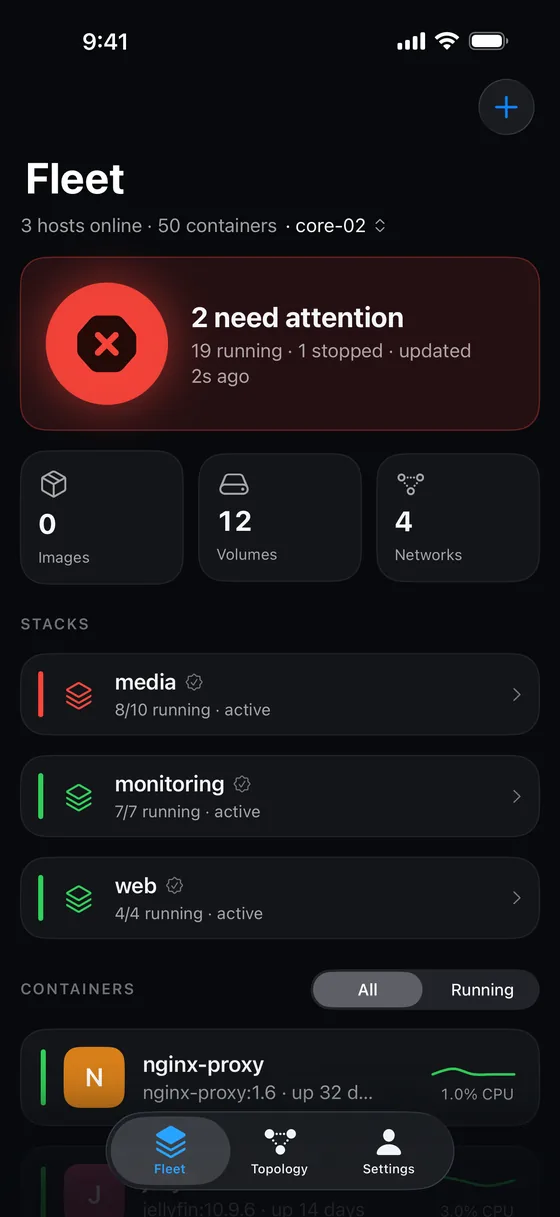 <figcaption>A host with one container that needs attention.</figcaption>
Something missing or wrong? Tell us.