
Stacks and templates
Create, redeploy and remove Compose stacks, from a compose file, a template or a Git repository.
A stack is a Compose project, docker compose on a Docker environment, podman compose on a Podman one. meshDeck lists the stacks on a host under STACKS in Fleet and lets you create, redeploy, stop, start and remove them.
A stack’s page
Tap a stack to open it. The header says what kind of stack it is (a compose project, a Portainer stack), whether it is active, stopped or deploying, whether it is Git-backed or was created by meshDeck, and when it was last updated.
| Tile | What it does |
|---|---|
| Redeploy | Recreates the services that changed. |
| Pull & redeploy | Pulls the images first, then redeploys. |
| Stop / Start | Stops or starts all of the stack’s containers. |
| Env | Opens the environment editor. Not available for Git-backed or swarm stacks, or if the .env file cannot be read. |
| More | Copy to host…, Edit in builder (if the stack came from a draft), Save as system…, Remove stack… and Remove stack and volumes…. |
Below the tiles are SERVICES, ENVIRONMENT (vault-backed values are shown in blue) and the read-only COMPOSE FILE.
Every action here asks first, except Start. Removing a stack removes its containers and networks. Remove stack and volumes… deletes its volumes too, and that data is gone. If meshDeck created the stack, removing it also deletes the compose file and .env it wrote; for other compose stacks the file stays where it is.
Docker Swarm stacks are listed, but redeploy and environment editing are not available for them.
The environment editor
Each row is a variable name and a value. The key icon lets you use a vault secret instead of a value. Save & recreate saves the change and redeploys the stack without pulling.
Where the values are kept depends on the host: for a stack created over SSH, in the .env file next to the compose file (mode 600); for Portainer, on the Portainer server.
Creating a stack
Choose + → New stack… (or Deploy → New stack… on iPad).
- Give it a Name: lowercase letters, digits,
-and_, starting with a letter or digit. - Pick a Source: Compose file, Template or Git repository.
- Set Pull images first as you like. It is on by default.
- Optionally open Environment (.env) to add variables and vault secrets.
- Tap Create & deploy. When it succeeds, the sheet closes.
Compose file. Paste or edit the YAML. It must contain services:. Over SSH it is written to ~/.meshdeck/stacks/<name>/ on the host, and values in .env are referenced as ${KEY}. Through Portainer, the file and environment are stored on the server.
Template. Tap Choose a template…. Values you enter go to the stack’s environment, and secrets become vault chips.
Git repository. Give the Repository URL (https://…), an optional Branch or tag, the Compose file path in the repository (default compose.yaml), and, for a private repository, a Username and Token. Over SSH the repository is cloned to ~/.meshdeck/stacks/<name>/repo on the host, and Redeploy pulls first. A token is written to a mode-600 credentials file beside the clone, never into the URL, and the phone does not keep it. Repositories that need an SSH key are not supported.
Templates
+ → Templates… opens the gallery. It ships with a curated, versioned set, WordPress, Nextcloud, Jellyfin, Grafana, Pi-hole, Gitea, Vaultwarden and more, grouped by category, and pulls the latest from meshDeck (refresh from the gallery’s toolbar). A deployed stack keeps the version it was made from.
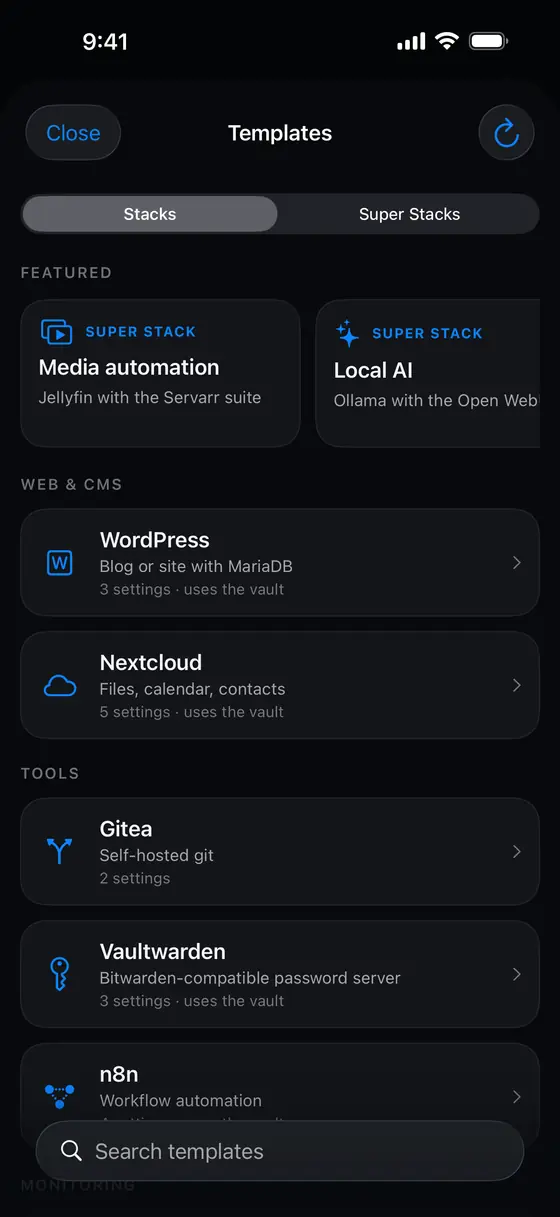
The gallery has two tabs:
- Stacks, single-app templates, grouped by category, with a Featured row at the top.
- Super Stacks, curated multi-app projects, like a media suite or a monitoring stack. See Super stacks.
On a Portainer host the gallery also shows that server’s App Templates and Custom templates. Compose and Git templates deploy as stacks, container templates open New container pre-filled, and Swarm templates are greyed out because they are not supported.
When something goes wrong
The message says what happened, for example “docker compose is not available on this host”, “git is not installed on this host”, or “A vault secret used by this stack is missing”. On a Podman environment the compose editor also lists, before you deploy, anything in the file that will not carry as written, see Podman hosts. See Troubleshooting.
Something missing or wrong? Tell us.