
iPad and shortcuts
The three-column cockpit and the keyboard shortcuts.
At regular width, meshDeck switches from tabs to a cockpit: three columns that let you keep your place while you look around.
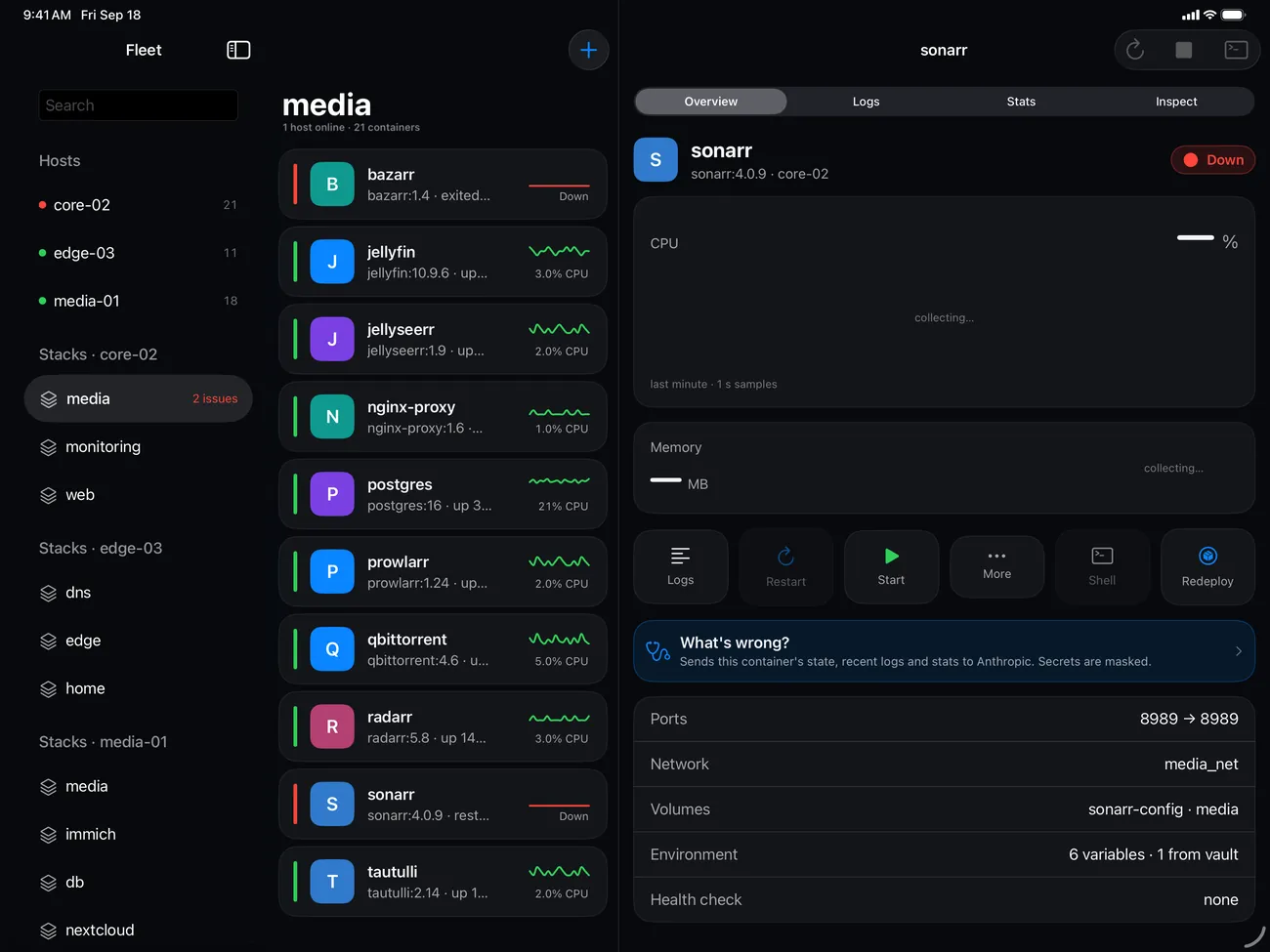 <figcaption>Sidebar, containers and detail side by side.</figcaption>
The three columns
Sidebar. A Search field filters containers by name or image. Under Hosts is each host with its status and container count. Under Stacks is a section for each host that has stacks, with “N issues” in red where there are any. Topology opens the map across the full width. Deploy holds New stack… and Templates… (when the selected host supports them), Systems… and Builder…. Settings opens as a sheet.
Containers. The containers of the selected host or stack, as cards or compact rows, with the same press-and-hold menu as on iPhone. The + button creates a container.
Detail. The container you picked, with a Section control: Overview, Logs, Stats and Inspect. Inspect is on iPad only. It pretty-prints the raw inspect data in collapsible sections, with Find in inspect and Copy JSON. Restart, Stop and Shell are in the toolbar, and are enabled only while the container is running.
Keyboard shortcuts
Press ⌘/ (or Settings → Display → Keyboard shortcuts) to see this list at any time.
| Shortcut | Action |
|---|---|
| ⌘K | Search |
| ⌘N | New container |
| ⌘R | Refresh |
| ⌘⇧T | Topology |
| ↑ ↓ | Move the selection |
| ⌘⏎ | Restart |
| ⌘. | Stop (asks first) |
| ⌘T | Shell |
| ⌘L | Logs |
| ⌘1 to ⌘4 | Overview, Logs, Stats, Inspect |
| ⌘/ | This list |
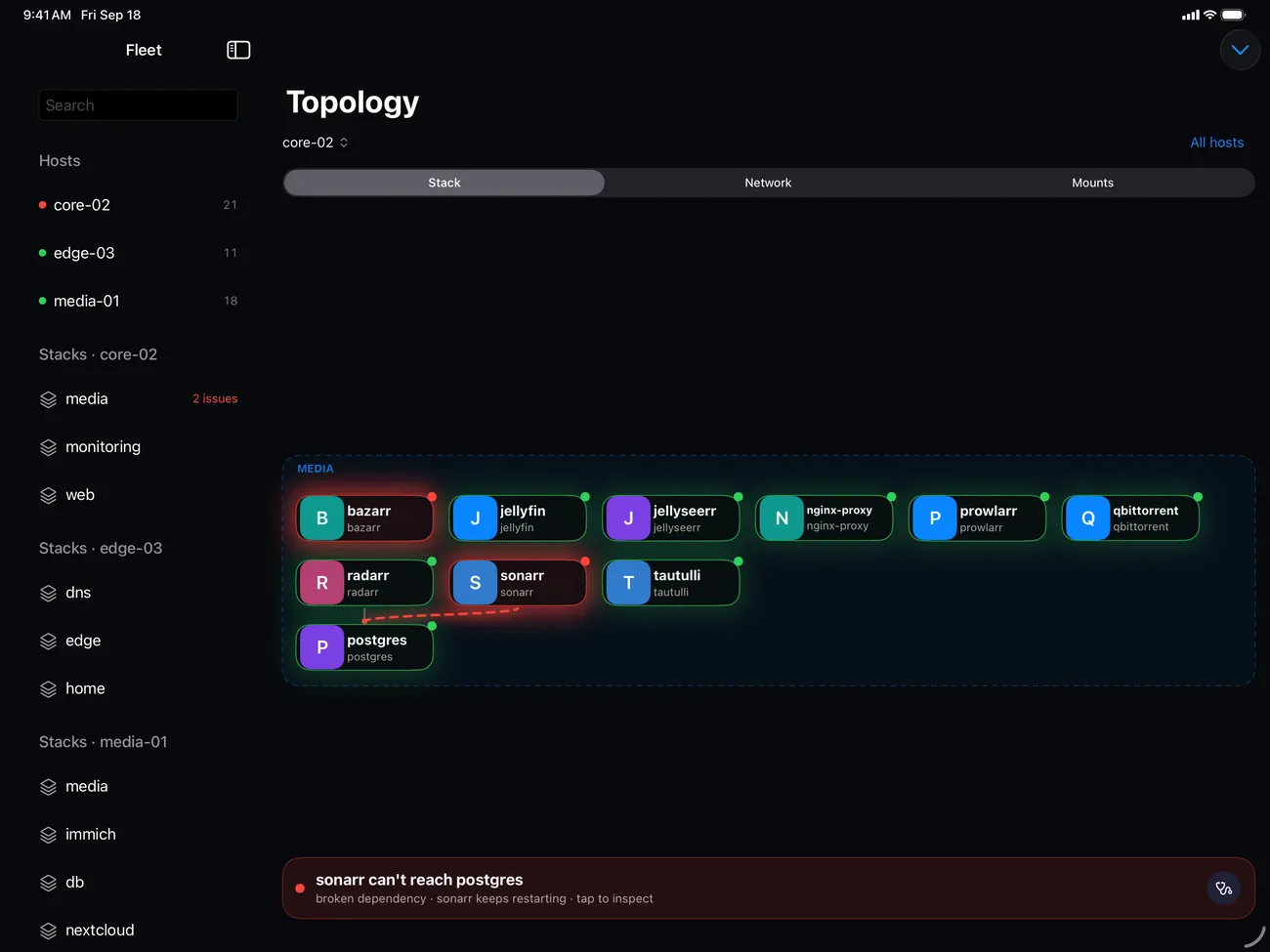 <figcaption>Topology gets the whole width.</figcaption>
Something missing or wrong? Tell us.